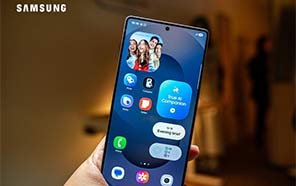
Samsung Galaxy S26 Ultra probably has one of the most feature-rich screens we’ve ever encountered. But most of you aren’t using it to its full potential, because the phone has those features turned off by default. We’ve put together this article to show you exactly how you can get the best out of S26 Ultra’s display.
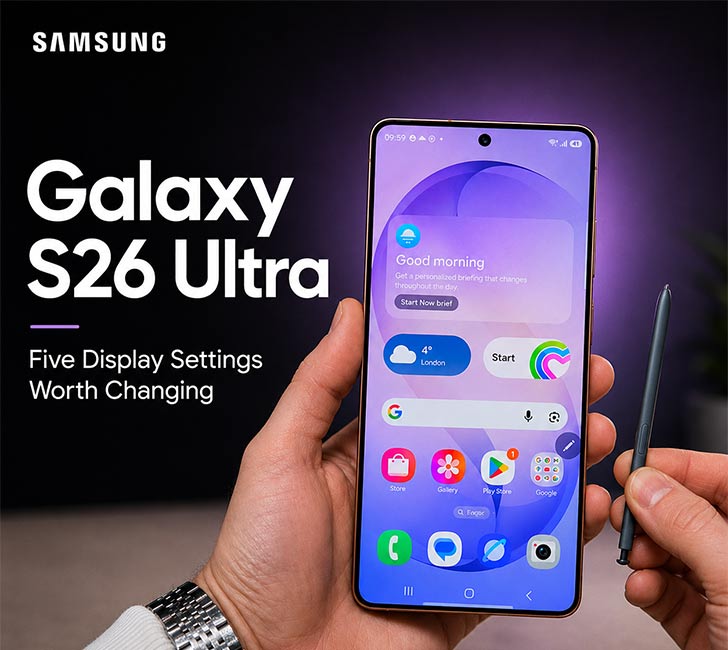
This is the only device that has a privacy filter built into the screen. It’s a 6.9” Dynamic 2X AMOLED to boot with an LTPO refresh rate of 1Hz to 120Hz. This newcomer also has a nice peak brightness: 2600 nits. It does have a 2K or 1440p resolution screen, but that’s not the setting it uses out of the box. So let’s start there.
Sharper Content, More Screen Space
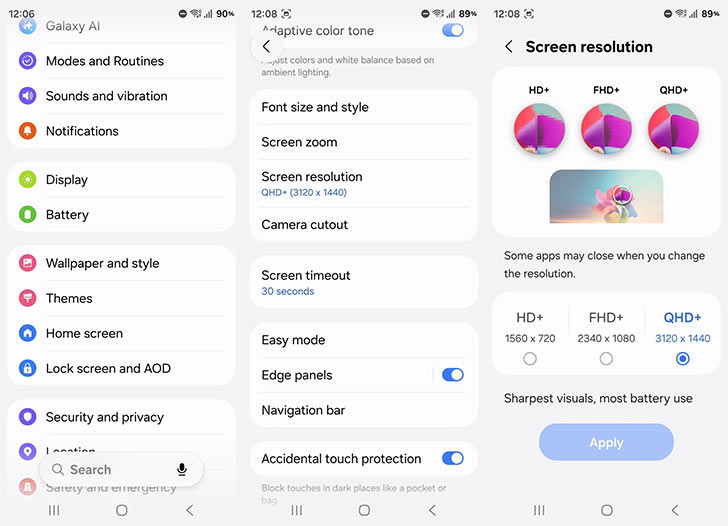
Samsung new Ultra model has a toggle tucked away under Settings > Display > Screen resolution. That’s where you can choose to set the resolution to 1440p QHD+. It’s set on 1080p FHD+ by default. Or conversely, you can drop it down to 720p HD+ if you want to save more battery. The highest resolution will give you the best display sharpness.
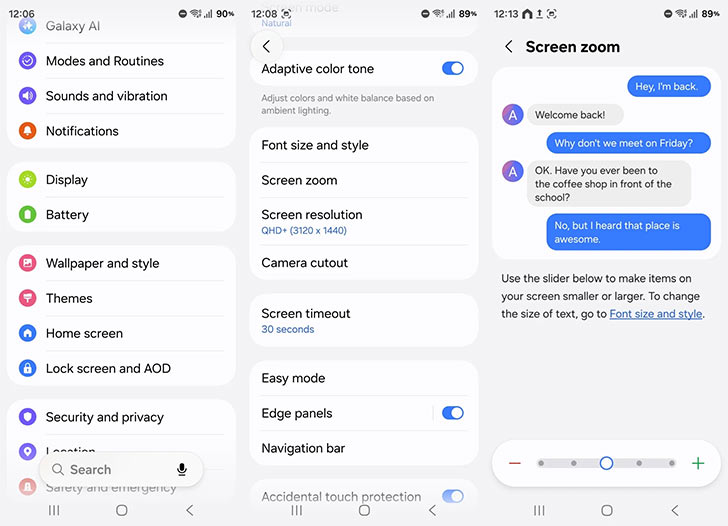
Screen zoom is another feature in the same Settings, and it lets you fit more content on the screen. Move the slider up or down so it scales the font and UI accordingly. But keep in mind that if you make the UI too small, the readability and eye comfort are affected.
Setting Up Privacy Display
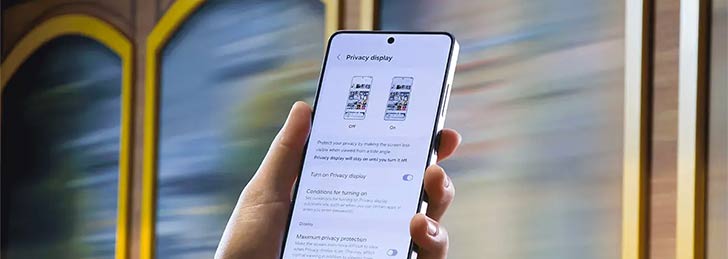
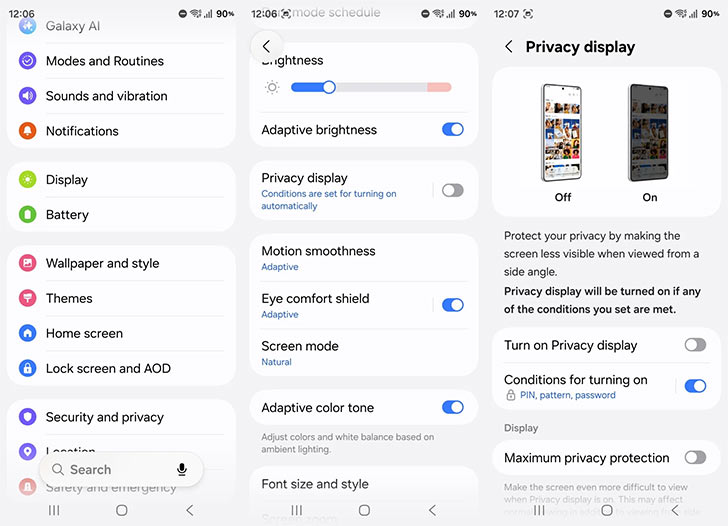
This is the most talked-about feature on the S26 Ultra and deservedly so, because it narrows down the screen visibility from the sides. No Peeping Tom can look over your shoulder and read your screen when the feature is turned on. You can put the Privacy toggle right on the Quick panel for fast access.
Again, you go to Settings > Display > Privacy Display. There’s a toggle for it in the menu, or you can set it to Maximum Privacy Protection, which will restrict the viewing angle even more. Privacy display can be automated. You can set it so it triggers when an app is opened, like a banking app. The setup is found at Settings > Display > Privacy Display > Conditions for turning on.
Always on Display and Lock Screen Management
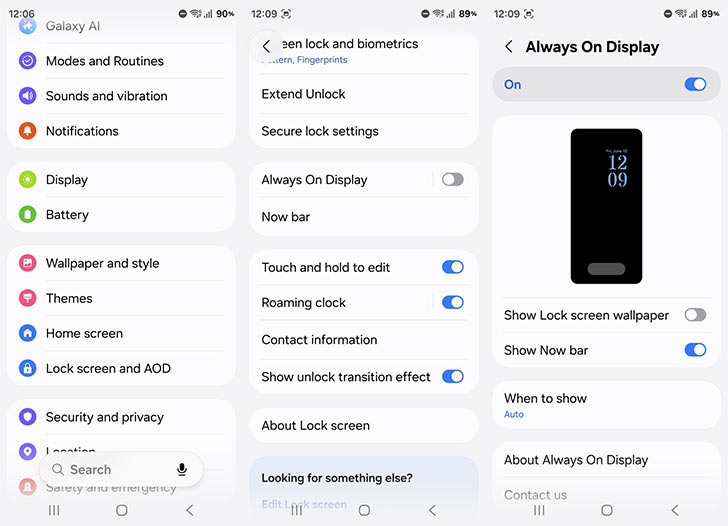
Default settings leave AOD off on the Galaxy S26 Ultra, when it’s one of the most useful features it has. Settings > Lock screen and AOD > Always On Display should let you toggle it, so it shows the time, date, and battery level on the lockscreen. Notification icons also appear on the AOD if you choose to display them.
By the way, Always on Display can be scheduled so it only shows up at specific hours in the day. AOD has Now Bar as well, if you choose to toggle it on. And AOD can be viewed with or without lockscreen wallpaper, though we do recommend keeping it off to save battery.
Changing Adaptive Refresh Rate Settings
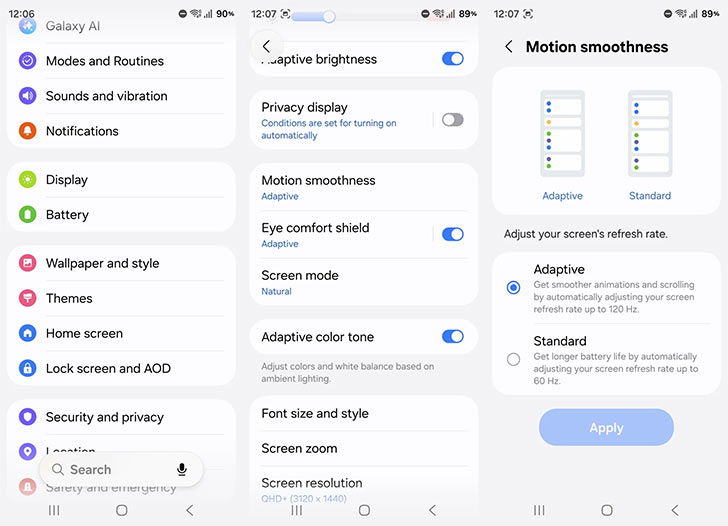
Settings > Display > Motion smoothness menu is where you’ll see the refresh rate settings. They set it to Adaptive or Auto, so the software decides when to lower the refresh rate to 1Hz or max it to 120Hz. This saves a lot of battery, though you can just switch to 60Hz. You’ll definitely lose smoothness, but this does allow max power saving.
Eye Comfort and Adaptive Color Options
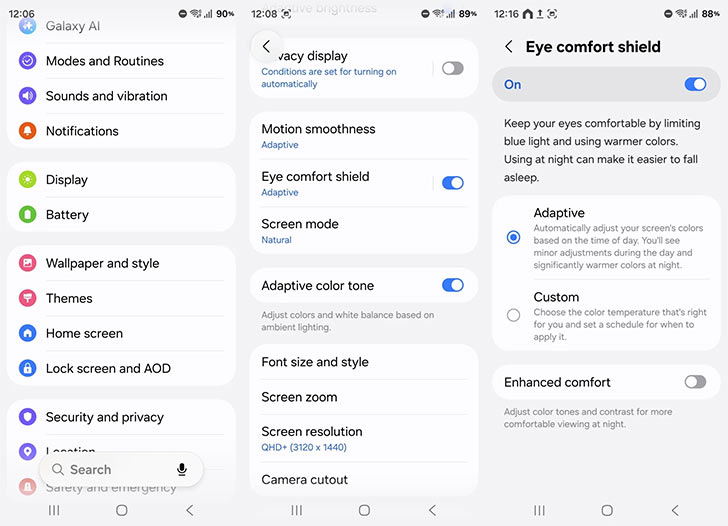
Blue light affects sleep, as it has been proven by countless studies. Galaxy S26 Ultra has an Eye Comfort shield that’s off by default, but you can turn it on at Settings > Display > Eye comfort shield. This makes the screen tones warmer to counter the blue light. Leave it on adaptive mode, so it adjusts the warm tone intensity based on the time of day.
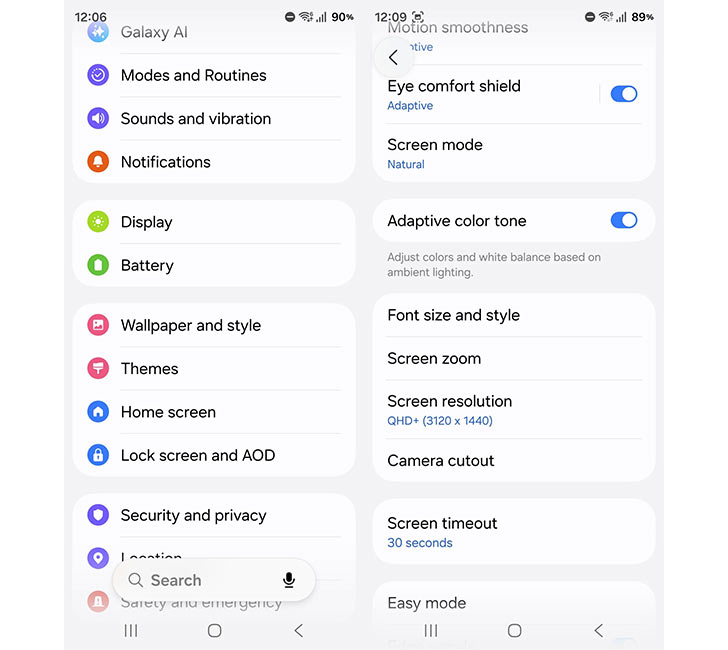
Settings > Display > Adaptive colour tone is another option on the phone’s display. Turning it on basically triggers the sensor to scan lights and the environment around you. The screen’s colour temperature and white balance values are adjusted accordingly, so the colours always look more natural and consistent.
All S26 Ultra users should visit these Settings at least once to see how far they can push its 6.9” Dynamic 2x AMOLED screen. It has a lot of potential that the company squanders under the guise of battery saving. Hopefully, you’ve found plenty of helpful tips here to make the screen more useful. Keep watching the news for more.